An internal web tool that warns Apple’s support team before a shop’s Apple Pay breaks: what is about to expire, who can fix it and exactly what is wrong.
UX/UI designerTeam of 20About 8 months · 2026
01Background
It started with complaints support couldn’t explain.
Shops kept writing to Apple’s Developer Support with the same message: Apple Pay stopped working, and nobody had changed anything.
A lot of the time, the cause was a digital key made two years earlier that had simply expired. Support only heard about it once shoppers couldn’t pay.
An internal Apple tool under NDA. Shops, names, screens and the numbers in them are illustrative. The usability testing results are real.
02Context
Apple Pay depends on three things that expire.
The shop’s ID keyMerchant Identity certificate · 25 months7 days left
The payment keyPayment Processing certificate · 25 months11 days left
Renewal rateShare of keys renewed before they expire.
Time to first correct replyFrom complaint to the first correct reply.
Notice response rateShare of expiry notices someone answered.
10Learnings
01Most failures were just missed dates
Mostly the fix was making deadlines visible and giving each one an owner. We didn’t need new technology.
02A lock needs a reason
Testers read a locked Revoke as broken until a line beside it said why.
Next stepTest the shop’s side too
All our sessions were with support people. But the locked Revoke lives in the shop’s account, so next time I’d get it in front of shop developers early.
Apple’s internal web app for test bank cards: engineers find and request them, Ops tracks them, admins set access by region, and leads see how it all runs.
UX/UI designerTeam of 7About 4 months · 2026
01Background
It started with a spreadsheet and a drawer of cards.
The engineers who build Apple Pay and Wallet test with real bank cards, often for a specific network, country or feature. There aren’t many of these cards, and everyone shares them.
Operations teams look after the cards. Requests came in over email and Slack. Who had what was tracked in a shared spreadsheet that was never quite up to date, and any report meant counting by hand.
Avalon brings all of that into one web app.
An internal Apple tool under NDA. Banks, cards, people, screens and the numbers in them are illustrative.
Who uses it
1Engineers
Find, request and hold the test cards their work needs.
2Operations
Track every card, hand it out, take it back, and change many at once.
3Administrators
Decide who can use what, person by person and region by region.
4Team leads
See how cards are used, and where requests wait.
02The old way
What it took to get one test card.
Step 1
Look for a card
Ask Ops for the spreadsheet, then search it. The same country is written several different ways.
1Find before you askEngineers see what exists and what’s free.
2Ask onceEverything Ops needs, in the first request.
3Every card accounted forWhere it is, who had it, and how it’s used.
04Information architecture
Everyone works from the same record.
Engineers and Ops used to share a spreadsheet and an inbox. Now everyone looks at the same card, with one status that updates as each of them does their part.
Explore full screen
Explore full screen
05Design trade-off
Assign cards to people, or to projects?
We went with both. The engineer is the person holding the card. The project explains why they have it and sets when it goes back to the shared inventory.
06Design system
Fitting in with Apple’s other tools.
I used the same building blocks as Apple’s other web tools: a top bar, a sidebar, large titles, inset lists and sheets. Each status has one name and one color, and they stay the same on every screen.
Explore full screen
Color
Blue#0071E3Buttons, links and the selected tab.
Ink#1D1D1FText.
Gray#6E6E73Secondary text.
Paper#F5F5F7The page behind every list.
07High-fidelity designs
1/8 · Nobody knows what exists
Find the card before you ask for it.
Before
Engineers search a shared spreadsheet where the same country is written several ways, and nothing says which cards are free.
After
Every card type shows what it works with and how many are free right now.
Explore full screen
Try it full screen
Network tabs, and filters for country, type and features.
How many are free, or when the next one is back.
Request one, or get notified when one frees up.
2/8 · Requests miss what Ops needs
A request that has everything Ops needs.
Before
A request is an email. Ops writes back for the project, the dates and the pickup, and by then the card is gone.
After
The request form asks for all of it up front.
Explore full screen
Try it full screen
The card, and how many are free as you ask.
The return date, taken from the project’s end.
Pickup at the desk or shipped, said up front.
3/8 · Cards follow people, not projects
Cards assigned to a project and an engineer.
Before
Cards are lent to people. When someone moves teams, their cards go with them, or into a drawer.
After
Each card goes back to the shared inventory when the work is done.
Explore full screen
Explore full screen
Who has each card, and when it’s due back.
Hand a card to a teammate without going through Ops.
The project’s end is every card’s return date.
4/8 · Requests land in an inbox
One queue, sorted by when cards are needed.
Before
Requests sit in a shared inbox among bank emails and returns, in the order they arrive.
After
Ops picks a request and reserves the exact card for it.
Explore full screen
Try it full screen
The most urgent request on top.
The full request on one side, so there’s no email thread to dig through.
The physical cards that match, with expiry warnings.
5/8 · The spreadsheet is always behind
Where every card is right now.
Before
An “Out” tab holds names, rough dates and notes like “soon” and “Aug!!”.
After
Each card has one status that stays current as people use it.
Explore full screen
Try it full screen
Filter by status, network and region.
Who has it, or which safe and drawer it’s in.
Select many, then assign, move or retire them at once.
6/8 · No record of who had what
Each card has its own history.
Before
The only history is the spreadsheet’s: who edited a cell, not who held the card.
After
The card shows its reservations, handovers, returns and fixes in the order they happened.
Explore full screen
Explore full screen
Its status and who holds it, at the top.
Every handover recorded by card ID or barcode.
Mark it blocked, or retire it with a reason.
7/8 · Access by asking around
Access by region, set by admins.
Before
New engineers ask Ops on Slack to share the sheet, and Ops checks their manager by hand.
After
Admins give access by person and by region.
Explore full screen
Explore full screen
Each region, its Ops team and what it holds.
When you join a team, you get access to its regions.
Requests for a new region come in already approved by a manager.
8/8 · Nobody sees the whole picture
Reports without the manual count.
Before
Each month someone counts the cards from a spreadsheet tab by hand, and the total never quite adds up.
After
Team leads see the same records as numbers they can filter by team and region.
Explore full screen
Explore full screen
Assigned and available cards in each region.
Utilization, week by week.
Overdue cards, and the whole inventory by status.
08Success criteria
Asset tracking efficiencyTime Ops spends finding, assigning and taking back cards.
Operational visibilityHow many cards we know the status, holder and location of.
Task completion timeHow long it takes to request, assign or return a card.
09Learnings
01Design for the handover
The record broke down at the desk. Recording the card ID right there is what keeps it accurate.
02Everyone sees the same status
Engineers, Ops, admins and leads all look at the same status, so nobody reconciles versions.
Next stepSit in on an audit
I’d like to watch Ops count every card and see which parts of the history they actually rely on.
A web portal where Apple Pay merchants see their conversion next to a benchmark, find where shoppers drop off and open cases that land in Salesforce.
UX/UI designerTeam of 12About 8 months · 2024
01Background
It started with “Is that good?”
Apple Pay merchants could see what their payment provider charged and declined. They couldn’t see how many shoppers opened the Apple Pay sheet and gave up, or whether their numbers were any good.
When sales fell, they emailed the Apple Pay team. The team worked each case in Salesforce, which merchants never saw, so the next email was often “any update?”.
The Merchant Portal gives merchants their own numbers next to a fair benchmark, and sends their cases to Apple’s merchant support and operations teams in Salesforce.
An Apple tool under NDA. Merchants, people, rates and case numbers are illustrative.
The three numbers we track
1Apple Pay conversion rate
Checkouts that end in a successful payment: the blue check on the sheet.
2User confirmation rate
Shoppers who confirm with Face ID, Touch ID or their passcode.
3Successful transaction result
Confirmed payments that the payment provider approves.
02The old way
What happened when Apple Pay sales fell.
Step 1
Sales dip
Each store’s payments report shows fewer Apple Pay payments, but nothing about why.
1Show the numberMerchants see their conversion next to a fair benchmark.
2Find the dropThey can tell where in the checkout shoppers are leaving.
3Get it fixedA case goes in with the data already on it, and they can follow it until it’s closed.
04Information architecture
Where the portal fits.
Before, merchants had a payments report and an inbox. Now the portal sits in the middle: numbers come in, cases go out to Salesforce, and their status comes back.
Explore full screen
Explore full screen
05Design trade-off
Show the benchmark as a number, or as a band?
We went with a band: above average, average, 0–10% below, or more than 10% below.
06High-fidelity designs
1/7 · No number for Apple Pay conversion
Your Apple Pay conversion, on the first screen.
Before
The payment provider’s CSV lists every charge and decline, but no rate.
After
The home page opens on the numbers, and on where the merchant stands.
Explore full screen
Explore full screen
Revenue, results, conversion and Face ID health, at the top.
Both rates against the benchmark, in one dark panel.
Open cases and guides below.
2/7 · Nothing to compare with
How you compare, month by month.
Before
Merchants ask Apple whether their numbers are good, and Apple can’t share anyone else’s.
After
Every month shows how far above or below the benchmark the merchant was.
Explore full screen
Explore full screen
Each month above or below the benchmark, in points.
Conversion, confirmation and result, each with its benchmark.
Filter by period and by site.
3/7 · Drop-offs nobody sees
See where shoppers leave the checkout.
Before
The payment provider’s dashboard counts payments and declines. Shoppers who close the sheet never show up.
After
The funnel shows four steps from the button to the payment, each with how many shoppers it lost.
Explore full screen
Explore full screen
From the button to the payment, step by step.
How many leave at each step.
What to try, matched to where they leave.
4/7 · A case starts with screenshots
Open a case with the data already on it.
Before
A case starts as an email. Apple asks for the merchant ID, the dates and an export, and a week goes by.
After
One sheet, opened from the drop, creates the case in Salesforce.
Explore full screen
Explore full screen
Topic, site, period and contact, picked rather than typed.
The chart and the funnel attach themselves.
It lands in Salesforce as a case.
5/7 · No one knows where a fix stands
Every case, with its status from Salesforce.
Before
Merchants follow up by email with no way to see where things stand.
After
The status merchants see is the one the team sets in Salesforce.
Explore full screen
Try it full screen
Open and closed cases, newest first.
Statuses sync from Salesforce: submitted, investigating, fixing, resolved, closed.
The team’s replies and attachments stay on the case.
6/7 · Help is a list of links
Help that explains your numbers.
Before
Help is a reply full of links, with no word on which one fits the problem.
After
Each number has a plain explanation, and every guide says what it helps with.
Explore full screen
Explore full screen
What each number means, and how it’s measured.
Common questions, answered.
Guides, each with what it’s for.
7/7 · Every store on its own
Every store and merchant ID in one place.
Before
Merchants with several stores keep their own list of merchant IDs, and check each store’s report on its own.
After
One list shows every linked account and store, each with its conversion and band.
Explore full screen
Explore full screen
Each store with its merchant ID and where it sells.
Conversion and band for each store, side by side.
Who can see which stores.
07Success criteria
Case resolution timeFrom a case being submitted to resolved.
Task completion rateShare of merchants who finish what they came to do: read their numbers, open a case, find a guide.
Merchant satisfactionHow merchants rate the portal and the help behind it.
08Learnings
01A benchmark needs a band
A range tells merchants where they stand without exposing anyone else.
02Put the case where the problem is
When merchants open a case right from the drop, the data comes along with it.
Next stepTest with small merchants
I’d test with merchants that have no payments team. They may need “What to try” before the numbers.
The one app USAA employees use, in place of six, to look people up, buy and sell things, register visitors, get IT help and read the news.
UX/UI designerTeam of 122021–2023
01Background
It started with six apps for one workday.
When I joined the project, a USAA employee who wanted to look up a coworker, register a guest and check on an IT ticket needed three different apps. There were six in all.
They were built at different times by different teams, so no two looked or worked the same. People told us they often didn’t know which one to open.
Our job was to fold all six into one app for more than 80,000 employees. I worked on it from the first survey to the final screens.
The research and results are real. The screens are redrawn, so names, items and numbers in them are illustrative; the old ones follow the original apps.
What went into Maven
1Directory
Look up a coworker, see their team and where they sit, and message or call them.
2Marketplace
Employees sell cars, furniture and electronics to each other. The old Classifieds app was one of the most loved.
3Visitor Registration
Register a guest, a delivery or a ride share so security knows they’re coming.
4IT Help and news
Ask IT for help, follow your tickets, read company news and watch videos.
02The old way
Getting anything done before Maven.
Step 1
Pick the app
First you have to remember which of the six apps does what you need, and whether you’ve installed it.
I wanted finding a match, joining it or organizing one to take as few steps as possible.
04User feedback
Two weeks with our own group.
Who
Players from our own weekly match.
How
A closed test around real weekly matches: creating and joining, inviting players, team chat.
Where
In the same WhatsApp group. Feedback came in as messages, the way everything else does.
From feedback to change
“There’s too much on the home page. I just want to see matches I can play today or tomorrow.”
→
A simpler home page: popular matches easier to see, upcoming match cards reorganized, repeated filters removed.
“I joined a match, but I can’t tell from the card. I have to open it again.”
→
Joined matches get their own state, so you can tell them apart right in the list.
“Finding matches on the map is nice, but switching between list and map should be easier.”
→
The map moved to a central, easy-to-reach spot on the main screen, and the day filters now match in list and map.
“There’s too much on the match screen. I want the time, how many are missing and the price.”
→
The pitch now leads, with the day and time just above it. The repeated location is gone, and the open spots are easier to see.
Key insightNobody asked for another social app.
05Low-fidelity wireframes
From wireframes to the first build.
I drew one wireframe for each step, so the layout and the order of information were settled before any visual design.
FindMatches grouped by day.
JoinSquad, price, one button.
JoinedThe moment you’re in.
ShareOne link to post in the group chat.
HostPick the pitch, the hour and the fee.
PlanOne pitch everyone can draw on.
Iteration: the match screen
Earlier iteration→
Final design
Earlier, a large kickoff time and the organizer’s star rating led the screen. The rating is now gone.
06Visual identity
Every version of the logo was a player in motion.
The logo changed three times before launch, from a runner to a lowercase mk.
First appA runner, mid-stride.
Jul 2026On green, with the ball.
Oct 2026In lime, the runner shaped into an mk.
TodayA lowercase mk. The runner’s head is the dot.
Color
Page#FFFFFFBackgrounds.
Ink#171717Text and selected states.
Lime#CCF02FMain buttons and live states.
Lime ink#0A3622Type on lime, and team crests.
Green#00875AThe brand on maps and unread dots.
Amber#D97706A few spots left.
Rose#E11D48The last spot.
07High-fidelity designs
1/4 · Open matches can’t be found
Open matches in your city, sorted by day.
Before
If you aren’t in the right group chat, you never hear about open matches.
After
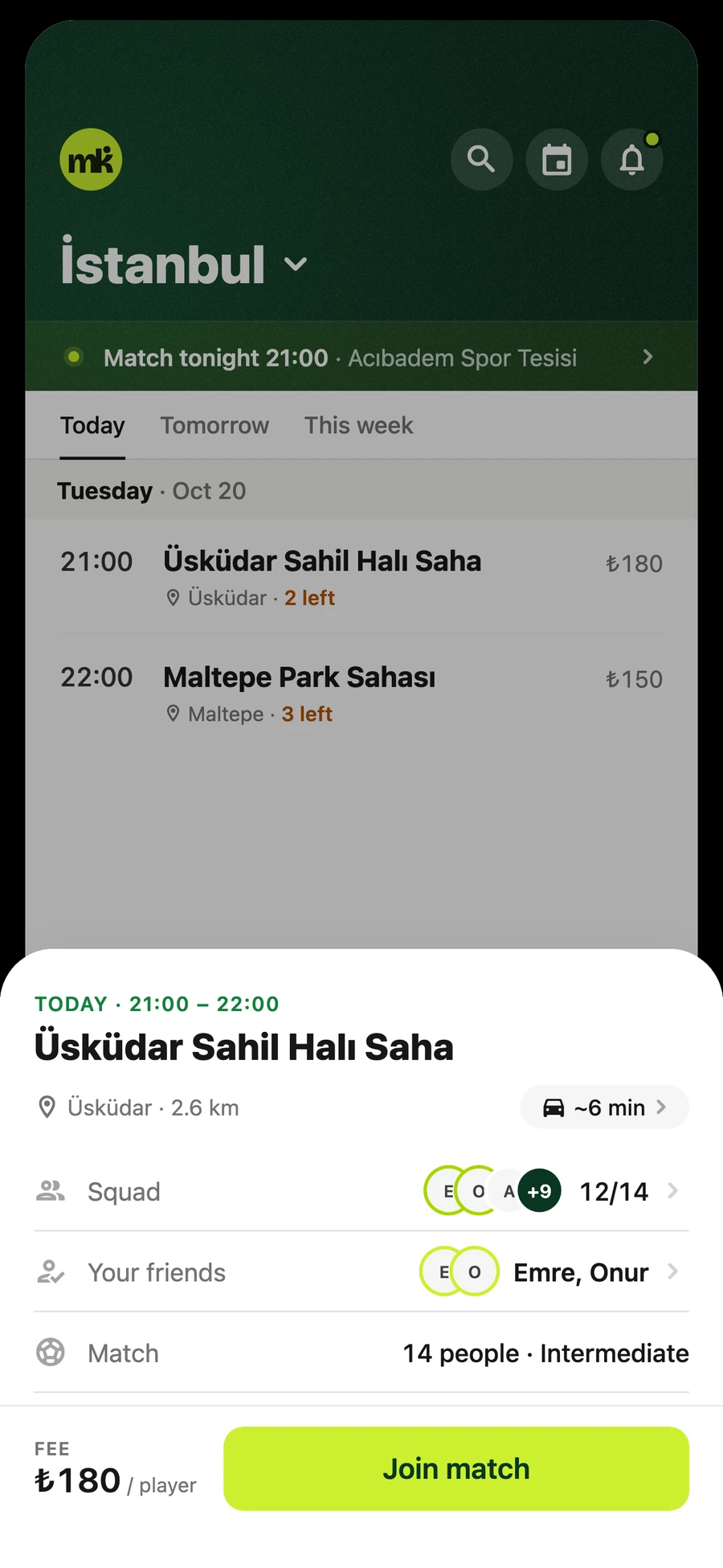
Anyone in the city can find a game, without being in the right group.
Your next match, pinned above the list.
Spots left, shown when only a few remain.
Price per player, not the total pitch fee.
2/4 · Filling a spot means chasing people
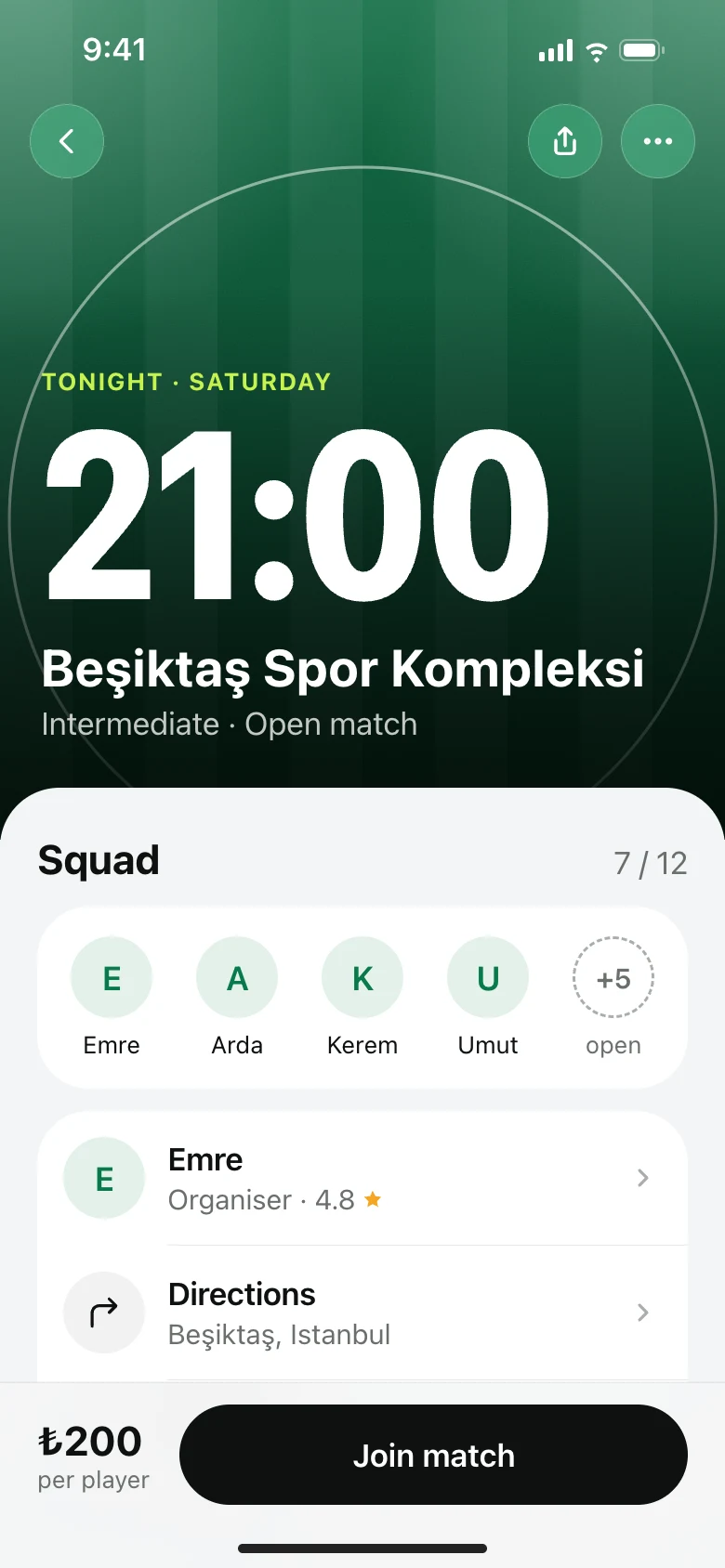
Join the squad in one tap.
Before
A missing player means messages, forwards and waiting for someone to say yes.
After
A match opens as a sheet with the squad, the friends already going and the price per player.
Squad count and the friends already in.
Distance and travel time to the pitch.
Join, the one action on the screen.
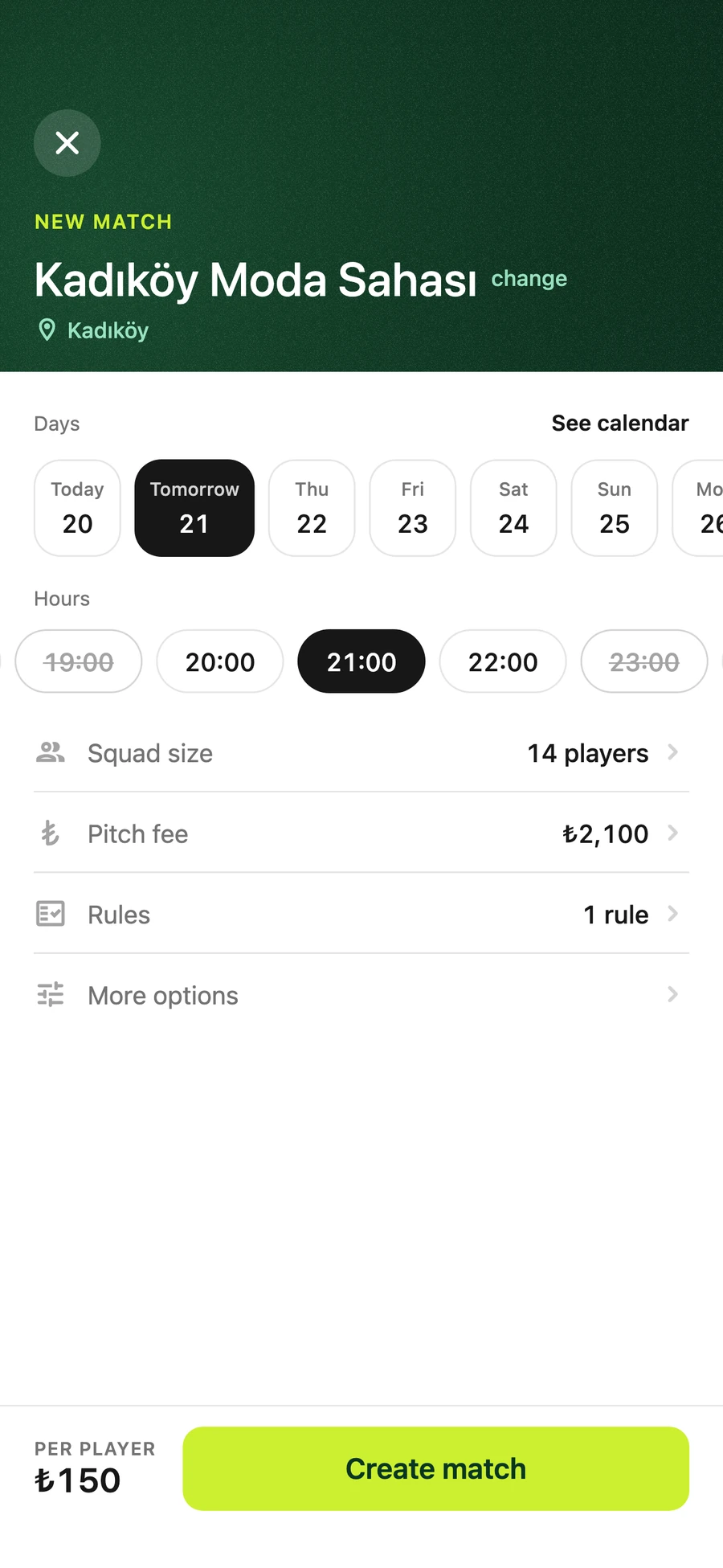
3/4 · Splitting the fee by hand
Host a match, priced per player.
Before
The organizer works out each share by hand and posts it in the chat.
After
Enter the pitch fee once, and it is divided by the squad size.
Hours already booked at the pitch are struck through.
Rules and more options stay optional, below the fee.
Price per player shown before you create the match.
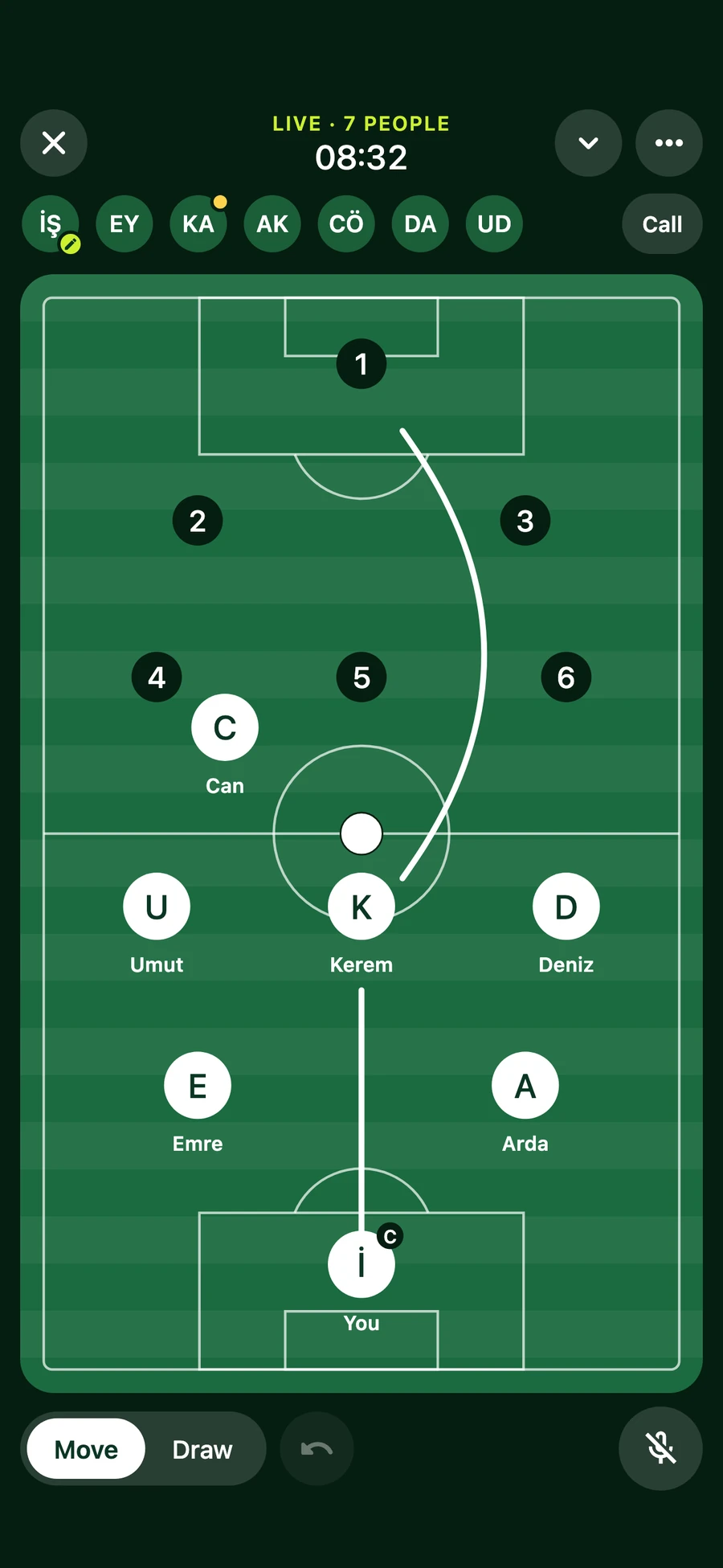
4/4 · The plan lives in one person’s head
The Match Board, for sorting out who plays where.
Before
Positions turn into a long thread nobody can picture, and it all starts again at the pitch.
After
Everyone opens the same pitch at the same time, so the lineup is sorted before kickoff.
Everyone in the session, live at the top.
Move players and draw the plan on one shared pitch.
Talk it through in the built-in call, without leaving the app.
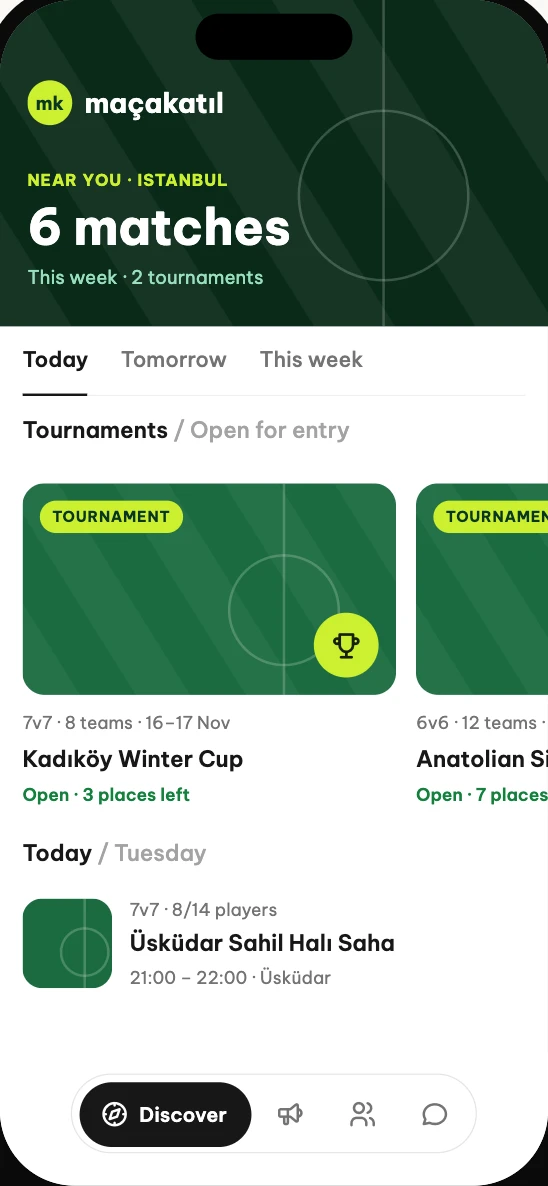
What’s next: tournaments
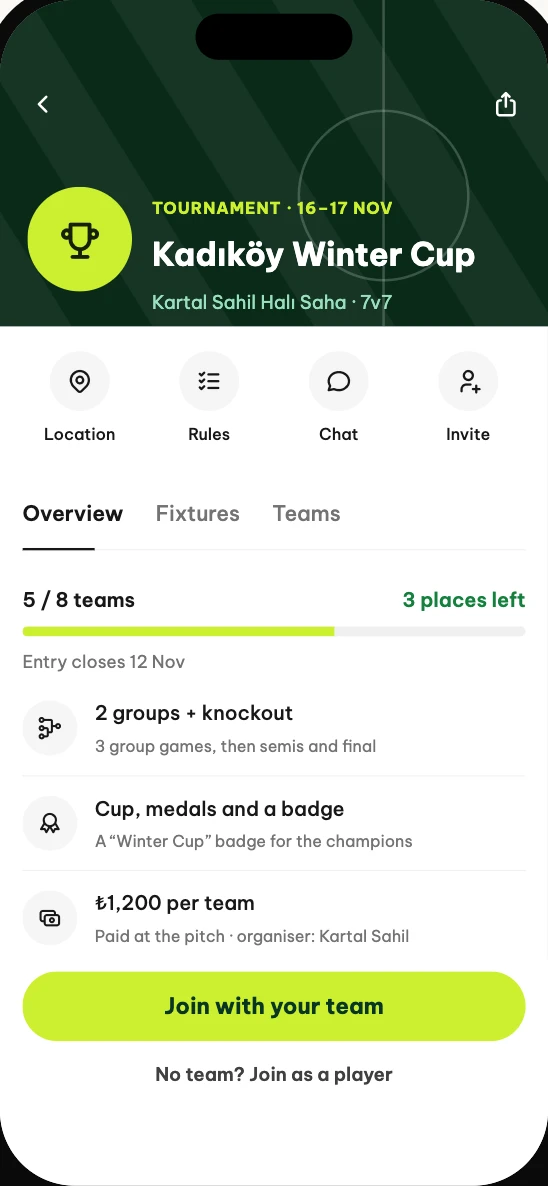
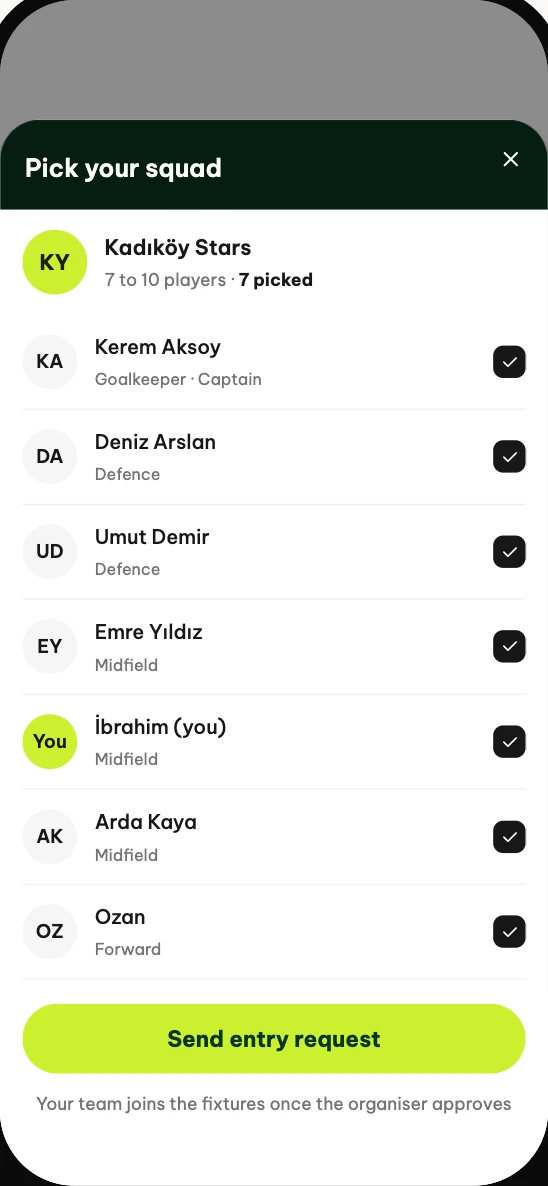
We’ve designed this but haven’t built it yet. An organizer publishes a tournament, and teams or single players enter, pick a squad and follow the fixtures.
Tournaments in Discover
The tournament
Pick your squad
08Outcomes
11,000Active users so far. The goal is 100,000 by August 2027.
3,700+Pitches across Türkiye, listed in the app.
09Learnings
01No fake matches
If nothing is on in a city yet, the live app just says so. It doesn’t fill the gap with sample matches.
02Start from your own group
The idea, the test and the feedback all came from the people we play with every week.
Next stepCollect feedback in the app
Now that it’s live, I want feedback from inside the app too, not just our group chat.
At Apple my days were full of meetings, and I kept joining them late.
My manager told me about a Mac app that put meetings in the notch. I wanted it to do more, so I started building my own.
02Design challenge
I wanted the notch to be where the small stuff shows up.
1MeetingsBefore a call.
2JoiningWhen it starts.
3MessagesWhen someone writes.
4TranslationWhen it isn’t your language.
5BatteriesWhen a device connects.
6FilesWhen you move a file.
7HomeAny time you look up.
03Low-fidelity wireframes
What the notch shows, and where.
I sketched each one first, to work out the layout and how much space the notch should take up.
MeetingsThe closed notch gets a bit wider for a meeting.
JoiningAt start time, Join is right there.
MessagesA message, answered from the notch.
TranslationRead it without leaving the page.
BatteriesAll your devices on one card.
FilesThe notch opens up so you can drop files in.
HomeThe notch expands into a panel of cards.
04Visual identity
Redrawing the icon.
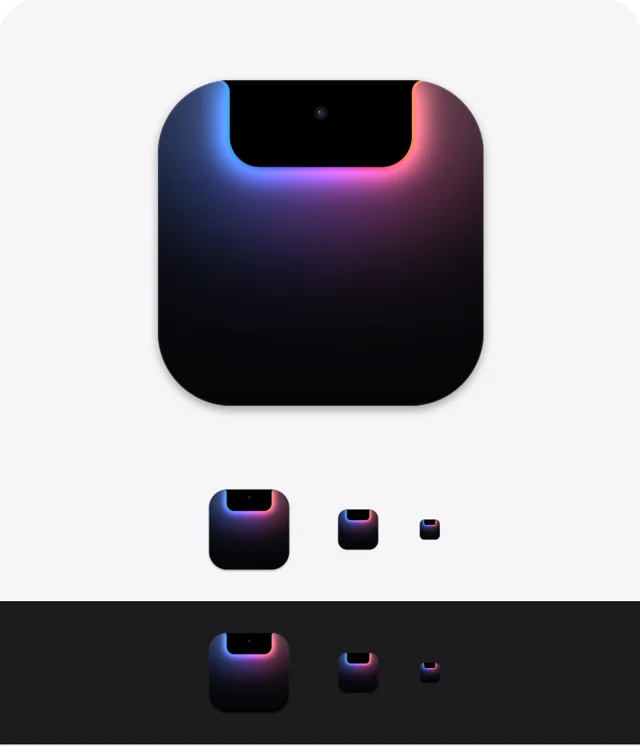
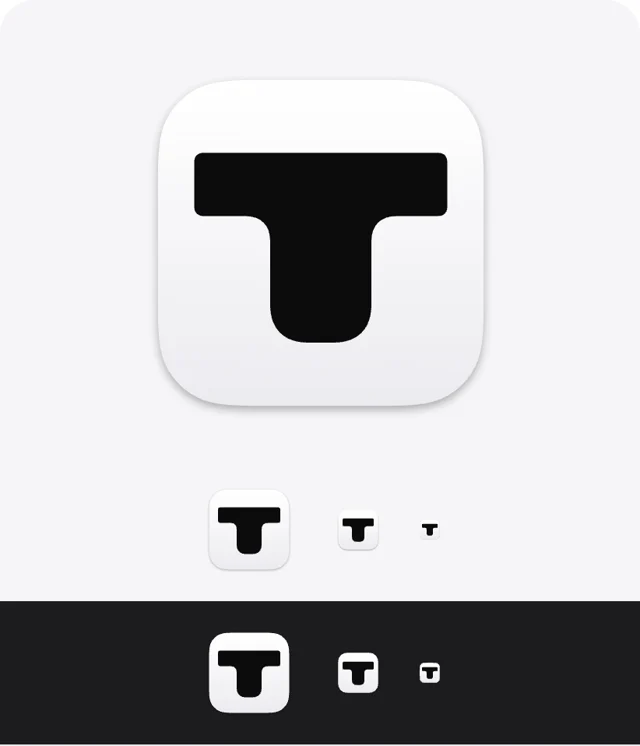
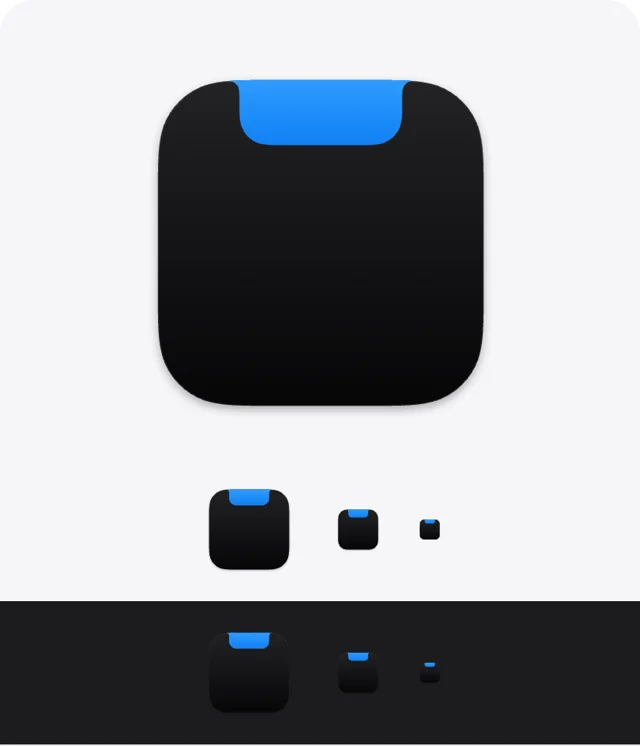
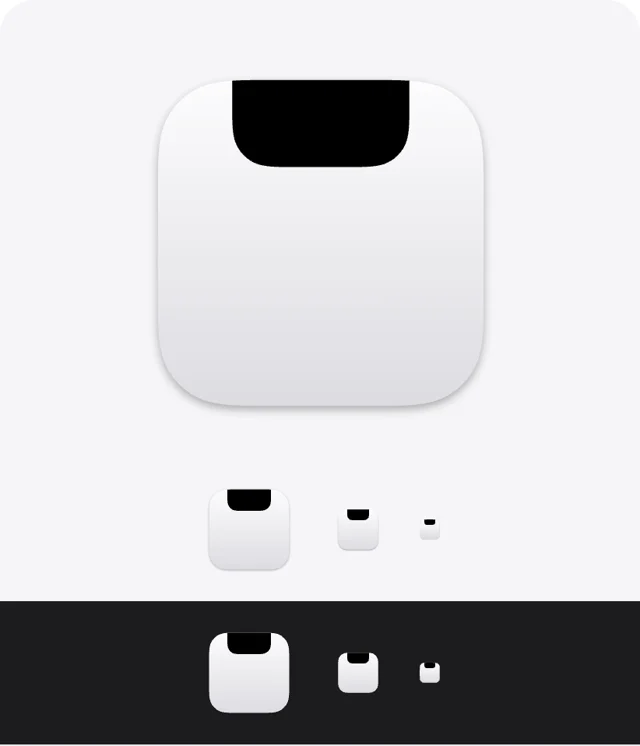
The first icon was a dark screen with a glowing notch. Before redrawing it, I laid out eight directions side by side, at full size and at Dock size, on light and dark backgrounds. The new mark combines two of them. The notch is the bar of a T, and the dot turned into a drop of orange.
Directions
BeforeThe first icon, for comparison.
A · The notch as a TThe top edge and the notch make a T, on a dark body.
B · The same T, lightThe same idea on a light body.
C · A lit notchOne colored notch on a black body.
D · Screen and notchA light screen with a black notch.
E · The notch, openedThe open notch’s outline on one color.
F · A bar and a dotA bar for the notch, and a dot coming out of it.
G · Bar and dot, lightThe same idea the other way round.
The new mark
App iconThe bar of the notch, and a drop of orange.
MarkIn ink, on light.
Two colorsThe drop in orange.
On darkIn cream, with the orange drop.
Color
Ink#0B0B0CThe icon’s body and the mark.
Orange#FF4F00The drop. It’s the only accent color.
Cream#F7F3ECThe mark on dark.
05High-fidelity designs
1/7 · Meetings
A countdown to your next call.
Before
A notification slides by, and it’s gone.
After
The notch shows how many minutes are left, then counts down the last minute in seconds.
A calendar icon, then the meeting’s name.
Seconds left, in large white type, red for the last 10.
“Starts in” in gray, so the number leads.
2/7 · Joining
Join straight from the notch.
Before
When the meeting starts, the link is in an email or the calendar, a few clicks away.
After
At start time the notch says “Starting now”, with a Join button that opens the call.
The meeting, still on the left.
Join in green, the color of a call.
Works with Zoom, Meet, Teams, Webex and FaceTime links.
3/7 · Messages
Reply without leaving your work.
Before
A message slides in, and answering means opening the app and losing your place.
After
Texts from Messages, WhatsApp and Telegram show under the notch, with Reply beside them.
The app’s icon, so you know where it came from.
Reply sits where Join does, so it feels familiar.
Close it, and your work is where you left it.
4/7 · Translation
Read it in your language.
Before
Words in another language mean copying them into a translator in the browser.
After
Highlight words and choose Translate, and the notch shows them in your language. On macOS 14 and 15, it opens Google Translate instead.
The language it came from.
The translation, in the notch.
Copy it in one click.
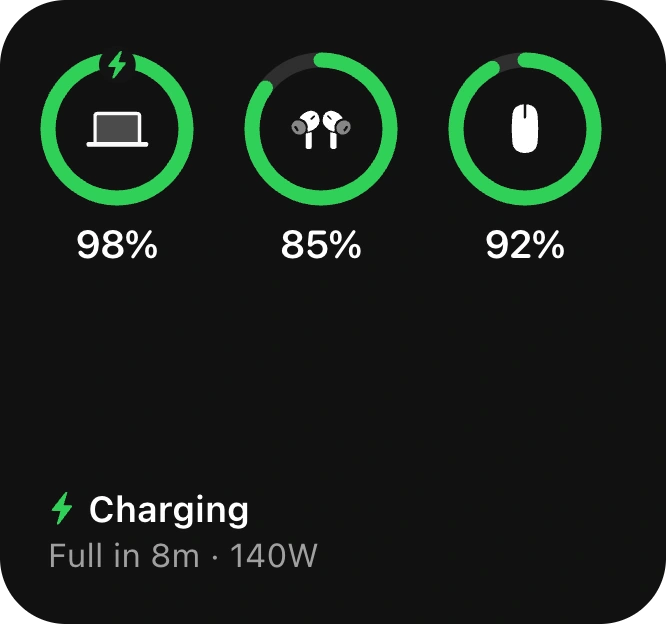
5/7 · Batteries
All your batteries on one card.
Before
The Mac, the AirPods and the mouse each keep their battery in a different menu.
After
One card shows a ring for each device.
Each ring fills to the charge left.
Time to full, and the charger’s wattage.
New devices show up automatically.
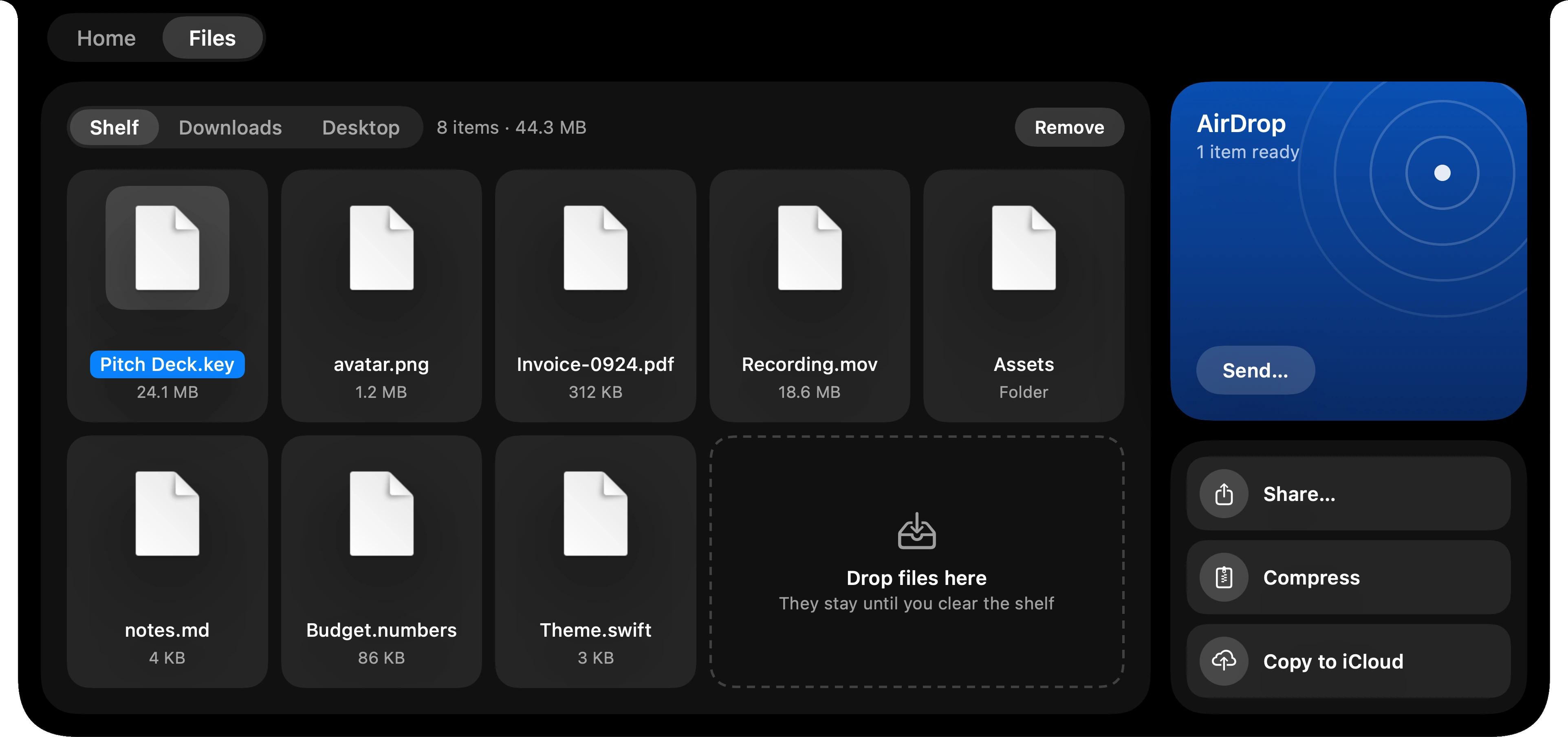
6/7 · Files
A shelf for files you’re moving.
Before
A file moving between apps lands on the desktop and stays there.
After
Drag it to the top of the screen and the notch opens into Shelf. It waits there until you need it.
Shelf, Downloads and Desktop, one click apart.
AirDrop, one step away.
Compress or copy to iCloud in place.
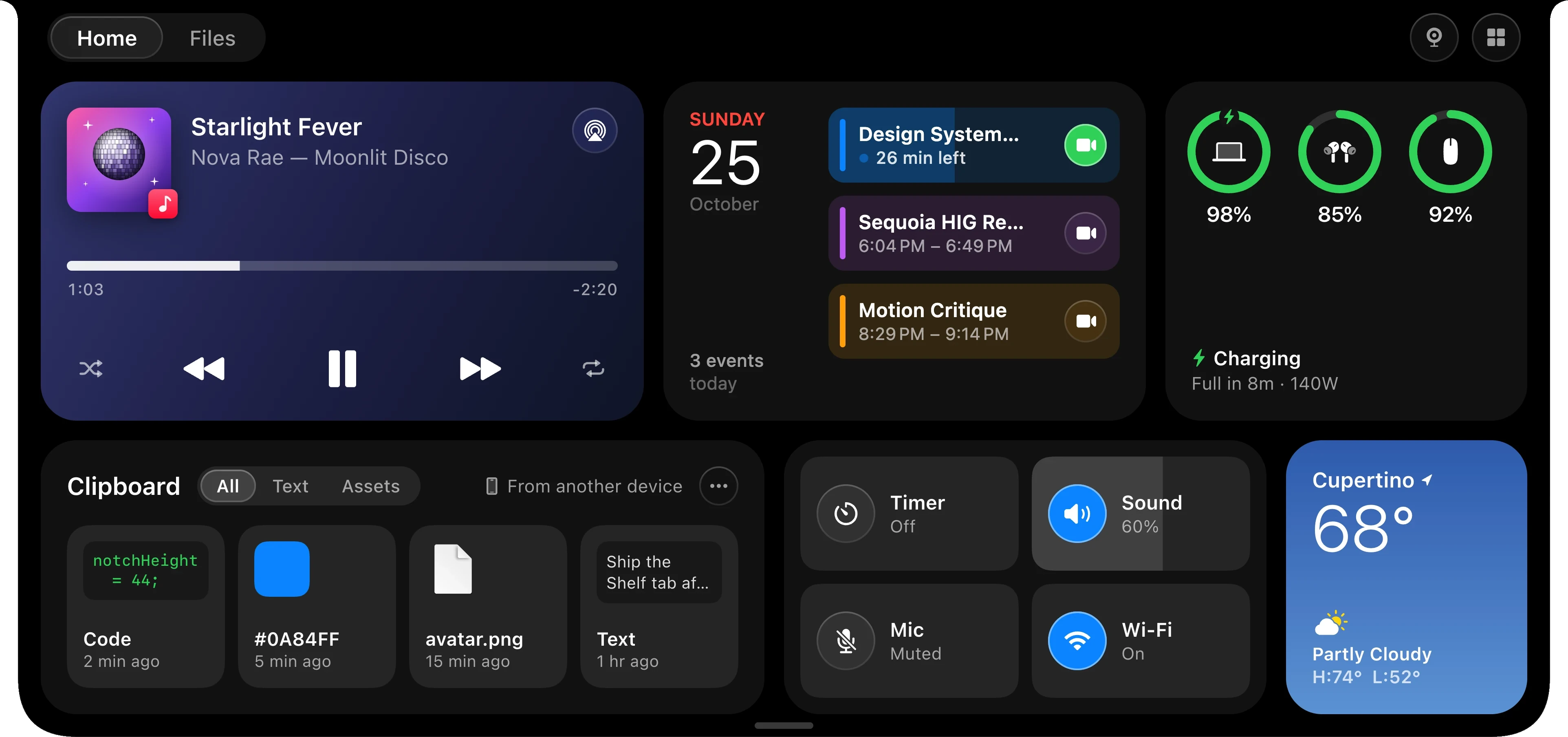
7/7 · Home
Everything together on Home.
Before
Music, your calendar and the weather each sit in their own window.
After
Hover over the notch and Home opens, with the basics for your day as cards you can rearrange.
Music, with controls.
Your day, with Join.
Batteries, clipboard and quick controls, then the weather.
06Customer feedback
What people say.
“The design feels like something Apple should have built into macOS.”
“Such a simple idea, but it makes a huge difference in my daily workflow.”
“The notch feature is surprisingly useful. Nice attention to detail.”
“Finally, something that helps me focus instead of adding more clutter.”
“I was skeptical at first, but now I use it pretty much every morning.”
“One of those apps you don’t realize you need until you start using it.”
From emails customers sent me.
07Development
Built with Claude Code.
I decided how every screen looked and behaved, and Claude Code was basically my engineer. We wrote the Swift together.
For every change I’d describe it, review the code, try it on my Mac and adjust. I built the website like that too.
126Commits.
32,000Lines of Swift, in SwiftUI and AppKit.
08Outcomes
304Licenses sold, at $9.99 once for three Macs.
09Learnings
01Start from your own problem
Being my own first user made trade-offs easier to call.
02One need at a time
Every feature started from something I actually needed.
Next stepTest with new users
I want to watch new people set it up and see where they get stuck.
1Tasks firstPut the things people come to do ahead of everything else.
2Scan, then readYou should see the topic, the date and what to do without reading the whole post.
3One set of blocksBuild every page from the same set of parts.
04Information architecture
Going from three lists to two menus.
The old lists were sorted by who owned each page. I re-sorted everything by what people come to do. Switch between Before and After to see where each old link went.
Explore full screen
Explore full screen
KeptThese were already focused, so they stayed, some with clearer names.Benefits & Pay → Pay & Benefits, Career → Career Development, Company, Wellness, Safety → Safety & Security
GroupedDepartments made up a third of all the links. Now they’re one group.10 departments → Organizations, Supply Chain → Operations, Manager Tools → People
Up frontPeople use these every day, so they moved out of the menus and onto the home page.Employee Tools → Tools, Service Desk → IT help, News, Employee Directory → Search
NewI split these out so no group has more than 11 links.Retirement, Time Off & Leave, Everyday tasks
Off the menusEach of these is for a single team, tool or campaign, so they came off the main menus.Community, Volunteer, Company Store, Employee Posters, Internal Comms, NERC, CSI, Financial Dashboard, Visitor Check-in, MyService Hub
The menus, open
Each menu opens to five groups with every link visible, so there’s no second level to dig through.
Try it full screen
05Low-fidelity wireframes
Wireframes for four page types.
I used these to settle what goes first on each page before starting any visual design.
HomeTasks first, then one story.
Latest updatesTopics as filters, action items pinned.
EventsThe date first, on every event.
News hubA front page for company news.
06Design system
Close to 150 components in one system.
Topic tags, date tiles, buttons, cards and rows. Each part does one job and looks the same wherever it shows up.
Explore full screen
Color
Navy#173464The header, main buttons and selected filters.
Orange#F58113Today, unread, and what needs action.
Ink#0D1D37Text.
Link#002C73Links.
Teal#045969Wellness, operations and IT topics.
Alert#D50000Action required.
Tokens
One type family, Roboto, in seven sizes. Spacing runs 2 to 32, corners 4 to 12, and focus is always a visible ring.
Explore full screen
States
Every part has the same four states (default, hover, focus and disabled), plus any it needs on its own, like read and unread, or registered.
Explore full screen
07High-fidelity designs
1/7 · Sorted by department
Home starts with your tasks.
Before
The tools sit in a column of banners, each in its own style.
After
Now the page opens with a greeting, then the tasks people come to do.
Explore full screen
Explore full screen
Eight everyday tasks first: leave, time off, pay, W-2 and more.
One story at the top, in place of two banners and a slider.
Popular tools, events, updates and IT help in one column.
2/7 · The slider comes first
A front page for company news.
Before
The top of the page is an eight-slide slider. Under it, news is a column of long posts with nothing to sort by.
After
The news hub has a front page, the way a newspaper does.
Explore full screen
Explore full screen
One featured story, with who wrote it and how long it takes to read.
The week’s top stories, numbered.
Topics as tabs, with a count on each.
3/7 · News you have to read
Updates you can scan, with action items kept in view.
Before
Open enrollment, a PTO deadline and a policy change all read like news, and the date is somewhere in the text.
After
Each update has a topic, a date and a one-line summary.
Explore full screen
Try it full screen
Topics with counts, and unread updates marked.
What needs action, listed again on the side.
A weekly email for anyone who would rather not check.
4/7 · No place for dates
One calendar for every date, with the next step on each event.
Before
On the old home page, paydays, townhalls and trainings are just news posts. There’s no calendar, nothing to add to yours and nothing to register for.
After
Now townhalls, paydays, learning and community events all live in one place.
Explore full screen
Try it full screen
Filters for pay, learning, community, wellness and holidays.
Register, Sign up or Start enrollment, right on the event.
Next payday, next holiday and the enrollment deadline at a glance.
5/7 · Pages of links
Department pages built from the same blocks.
Before
Corporate Support Services is a big photo and a list of links with one-line descriptions, laid out by whoever owns it.
After
Every department page now has the same shape.
Explore full screen
Explore full screen
Section navigation across the top of every department.
A hero that says what the department does.
Every service as a card, with its one next step.
6/7 · Finding things
Search that finds the actual thing.
Before
Search is a box in the header. To find a tool or a person, most people go through the menus and department pages.
After
Search for “pay statement” and the first result is the pay statement itself.
Explore full screen
Try it full screen
The best match first, with the action to take.
Results grouped into tools, pages, people and news.
Filters for each kind, and searches others use.
7/7 · Moving everyone over
Switching everyone to the new CONNECT.
Before
The old site counts down to launch, then says it is going away, explains what to do, and asks anyone still there why they came.
After
One button, Get started, takes people straight to the new CONNECT.
Explore full screen
Explore full screen
A countdown on the old site to launch day.
What’s changing, what to expect and what to do, in three lines.
A welcome at the top of the new home page, and a way to say what you think.
08On the phone
On the phone, the home page splits into two tabs.
Many people at CPS Energy work in the field, so the home page had to work one-handed. The tasks stay on top, and two tabs split the rest: Discover for stories, Resources for everything else.
Try it full screen
HomeSwitch the tabs to see both.
Explore full screen
MenuThe same two menus as on the desktop.
09Development
Building it on AEM, then on Edge Delivery Services.
Partway through, we moved from Adobe Experience Manager to Edge Delivery Services. We wanted faster pages, easier publishing, fewer technical dependencies and less upkeep.
Each component became a block in the editor. Here is the Career page, built in three steps.
Explore full screen
1 · Add a block Pick one from the library and drop it where the line shows.
Explore full screen
2 · Fill it in Title, text, image and one button, with nothing to lay out by hand.
Explore full screen
3 · Arrange and publish The content tree shows the page as a stack of blocks, in order.
10Success criteria
Page load performanceHow fast pages load on Edge Delivery Services.
Publishing efficiencyHow quickly the people who publish can build and update a page.
Employee engagementHow much employees use the news, updates and events.
Usability feedbackWhat employees say about finding what they need.
11Learnings
01Design the blocks first
Once the components exist, a new page is mostly a matter of picking blocks and putting them in order.
02Sort by task, not by owner
The old menus followed the org chart. Re-sorting every link by what people come to do is what took three lists down to two menus.
Next stepRead the survey, page by page
I’d track how many people answer Yes to “Did you find what you were looking for today?” on each page, and fix the pages that get a No.

 First app
 Jul 2026
 Oct 2026
 Today
Today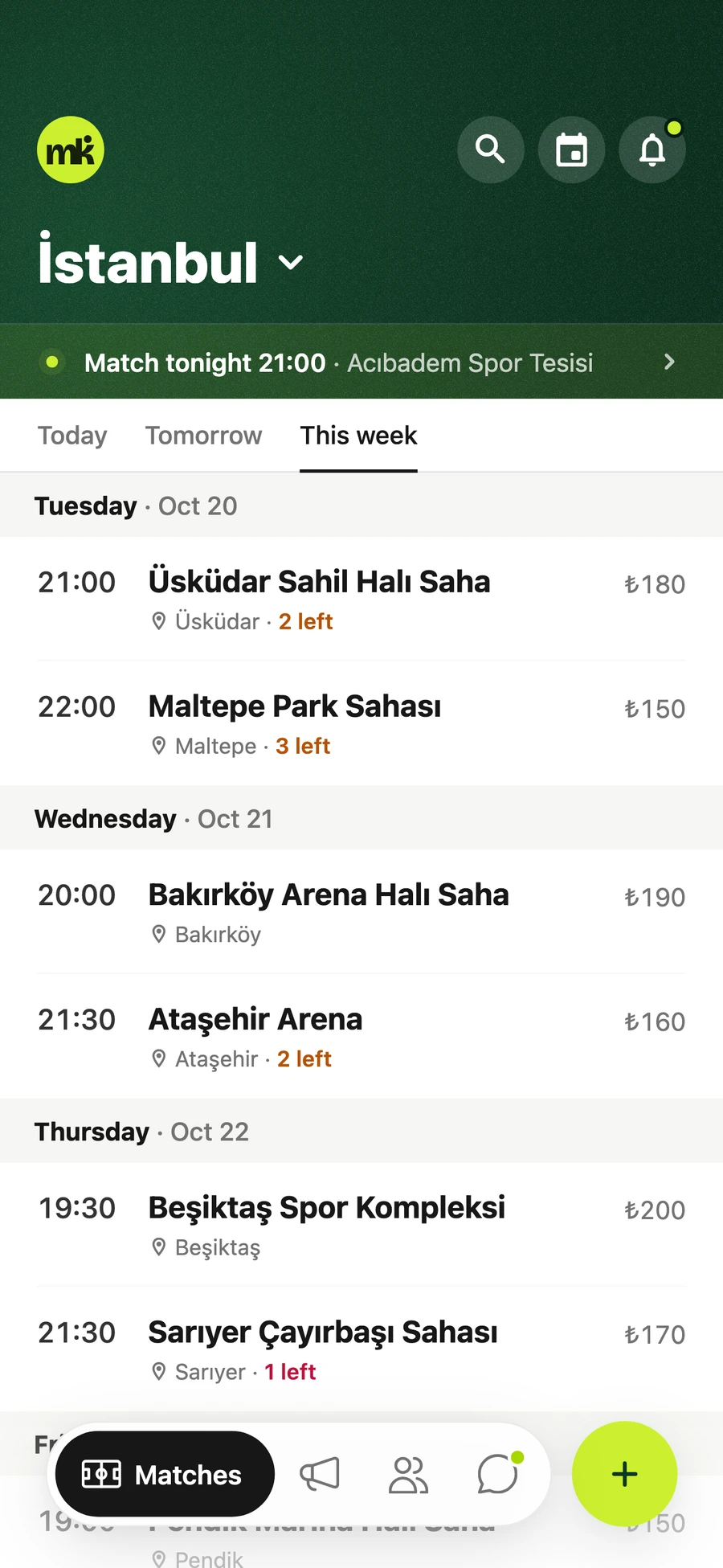
 Before
 A · The notch as a T
 B · The same T, light
 C · A lit notch
 D · Screen and notch
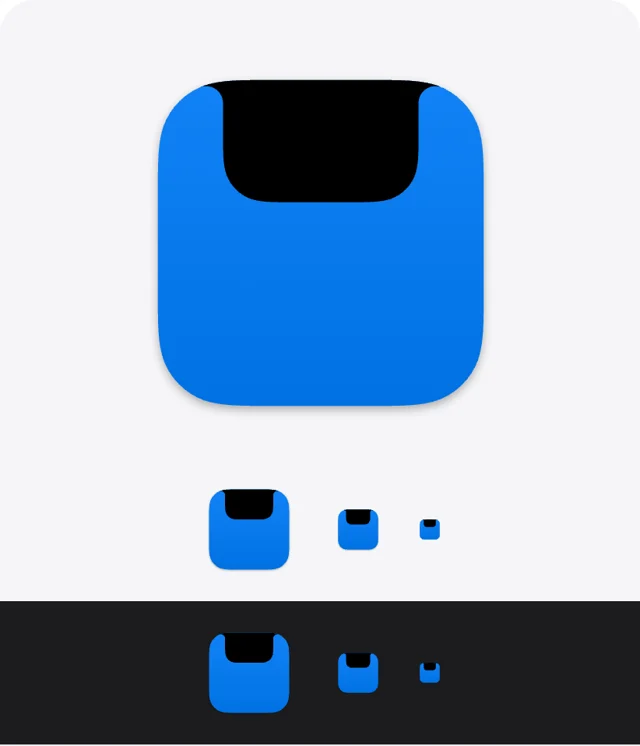 E · The notch, opened
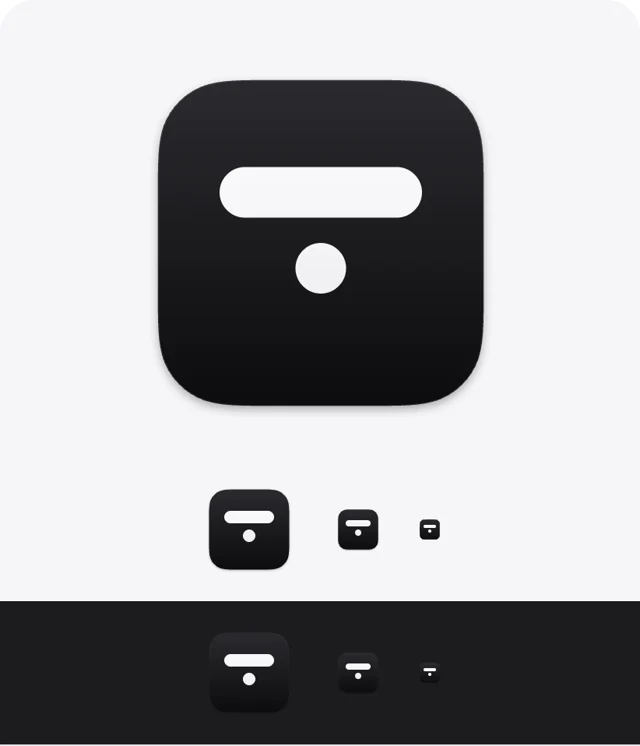 F · A bar and a dot
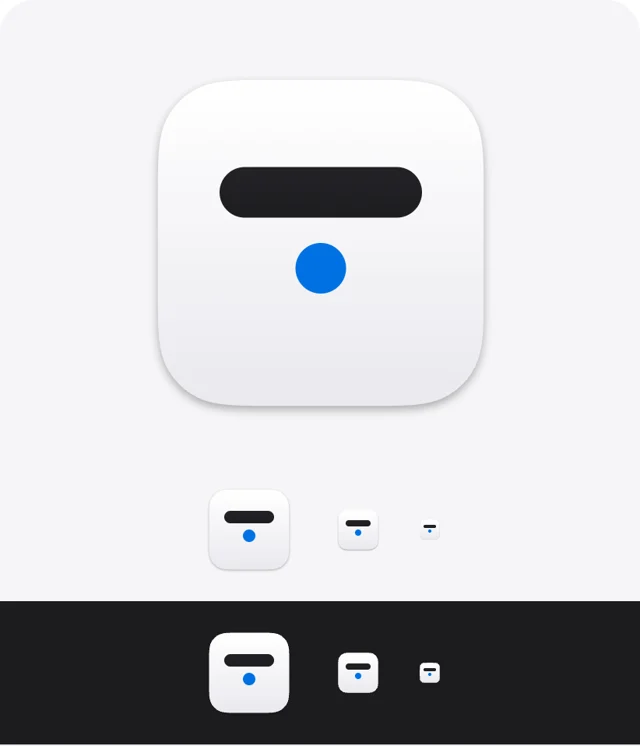 G · Bar and dot, light
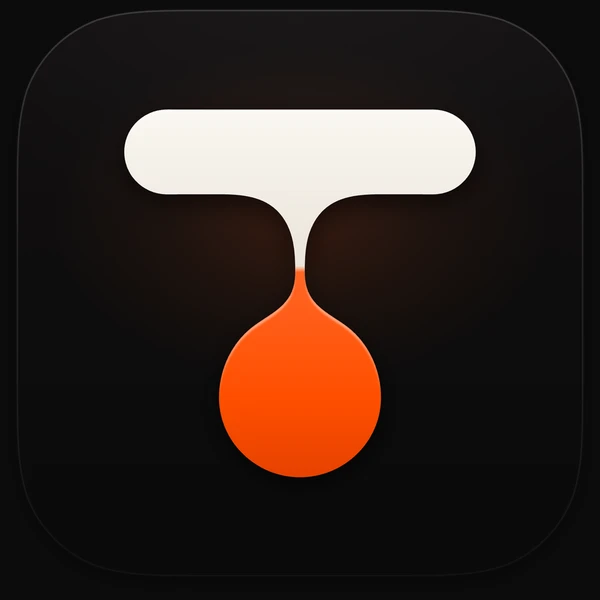 App icon
 Mark
Mark Two colors
 On dark